Getting Started
You're 3 steps away from adding great in-app support to your Unreal Engine game.
Guide to integrating the Unreal Engine plugin for the Helpshift SDK X.
Requirements
- Unreal 4.26 and above.
- Supported Android OS versions:
- SDK X is functional only above API Level 24 i.e Android OS 7 Nougat and above.
- The
minSDKVersionin code is kept as API Level 19 to allow importing the SDK and compiling in apps that allow installation till API Level 19 i.e Android 4.4 KitKat. - If your app is installed on a device below API level 24 (i.e below Android OS 7 Nougat) then you can choose to have a different medium for providing support. For example, Email, Web etc.
- Supported iOS versions: iOS 15 and above
- For details regarding Helpshift SDK's support policy, please refer to this article.
With 10.3.0 release, applications utilizing UE 4.26 must be built using Xcode 14.1 or later.
From 10.4.0, SDK is compiled using Java 8 to ensure compatibility with Android 15 build tool chain.
- SDK 10.3.0 and above functions and is supported on Android 7 and above (API level 24 and above).
- You can still compile your app using a minimum API level of 19, but the support starts for API level 24 and above. For details regarding Helpshift SDK's Android OS support policy, please refer to this article.
Download Helpshift Unreal SDK
SDK X - In-app Customer Service
Helpshift SDK .zip folder includes:
| HelpshiftSDK | Unreal Engine plugin package of Helpshift SDK X |
| Source | Contains the HelpshiftDemo project source code. This code is for reference and should not be used in your application |
| Content | Contains the HelpshiftDemo project blueprints. This code is for reference and should not be used in your application |
Add Helpshift to your Unreal project
- Unzip the Helpshift Unreal SDK package.
- Copy the
plugin(HelpshiftSDK) directory into[YOUR_PROJECT]/Pluginsdirectory - After that, once you reopen your project, the plugin should appear in the Plugins section

Initializing Helpshift in your app (Blueprint)
-
First, create an app on the Helpshift Dashboard
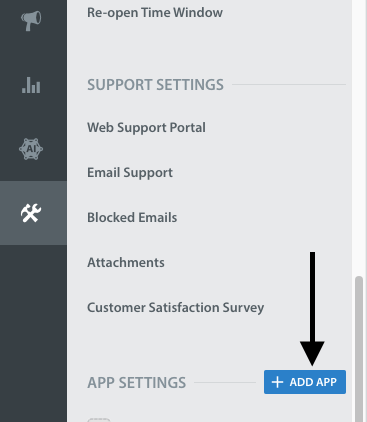
-
Create an app with Android and iOS as selected
Platform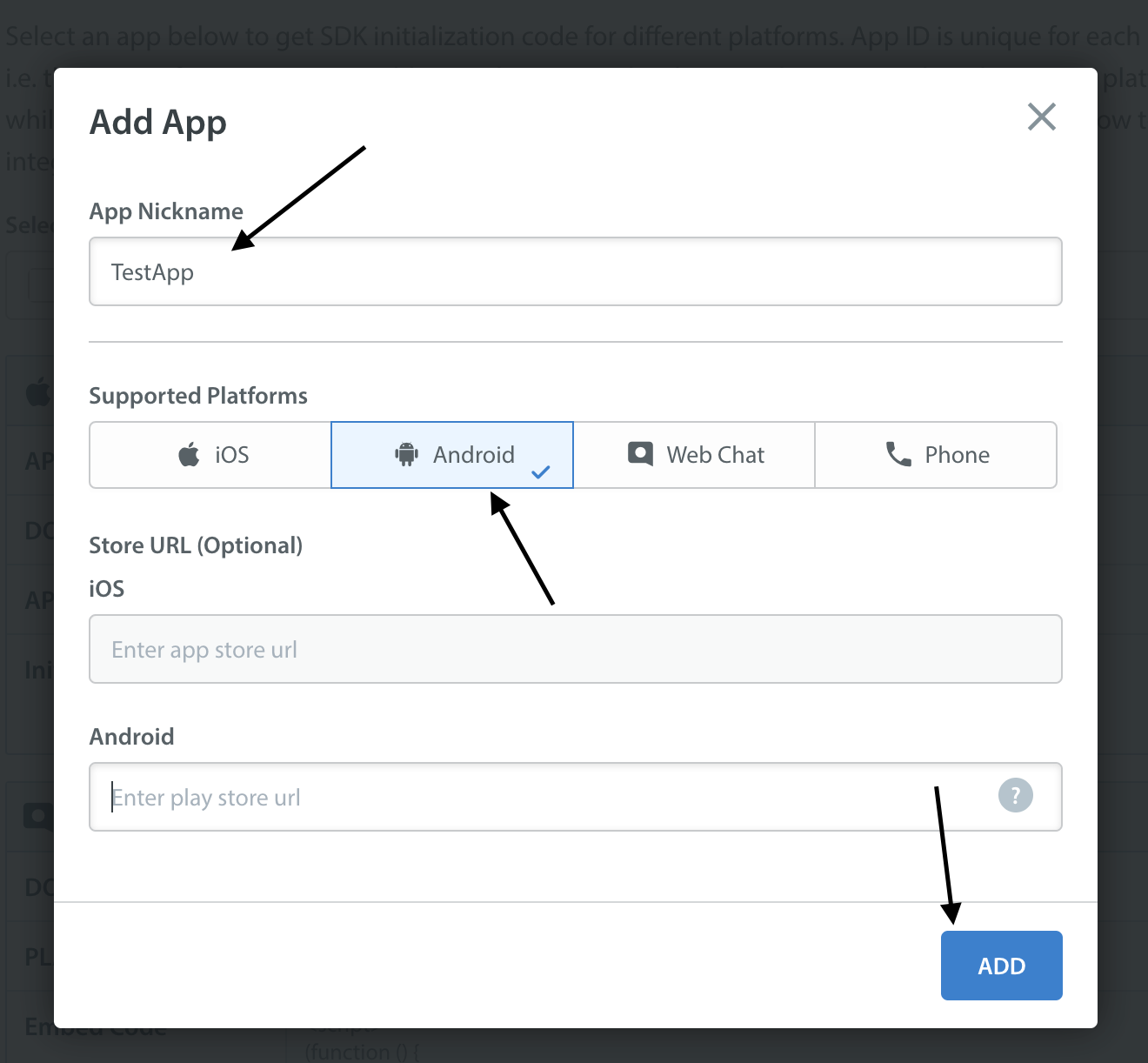
Helpshift uniquely identifies each registered App with a combination of 2 tokens:
Domain Name | Your Helpshift domain. E.g. happyapps.helpshift.com |
Platform ID | Your App's unique platform id (App's Platform Id on dashboard is your platform Id) |
You can find these by navigating to Settings>SDK (for Developers) in your agent dashboard.
Select your App and check Android as a platform from the dropdowns and copy
the 2 tokens to be passed when initializing Helpshift.
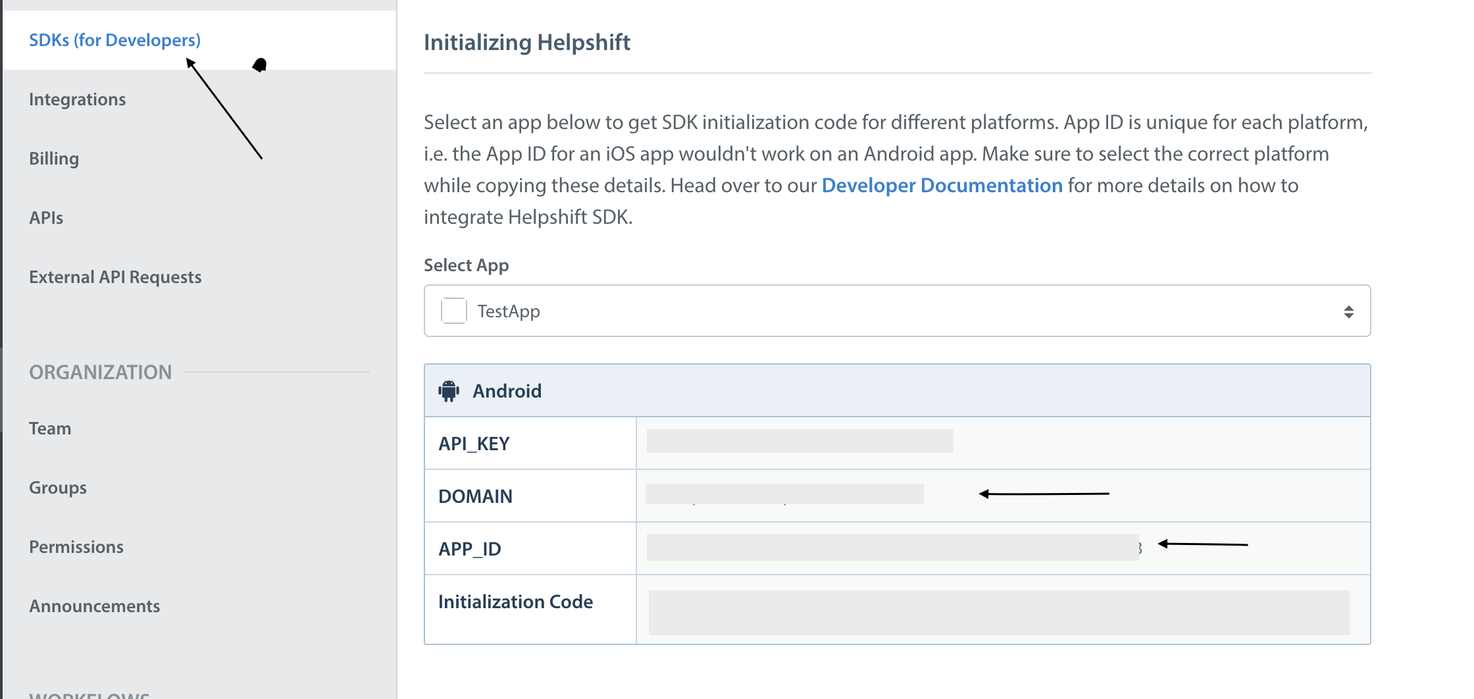
You should now go to the Project Settings -> Helpshift SDK and configure your specific project fields. Copy the domain and platformId from the dashboard.
__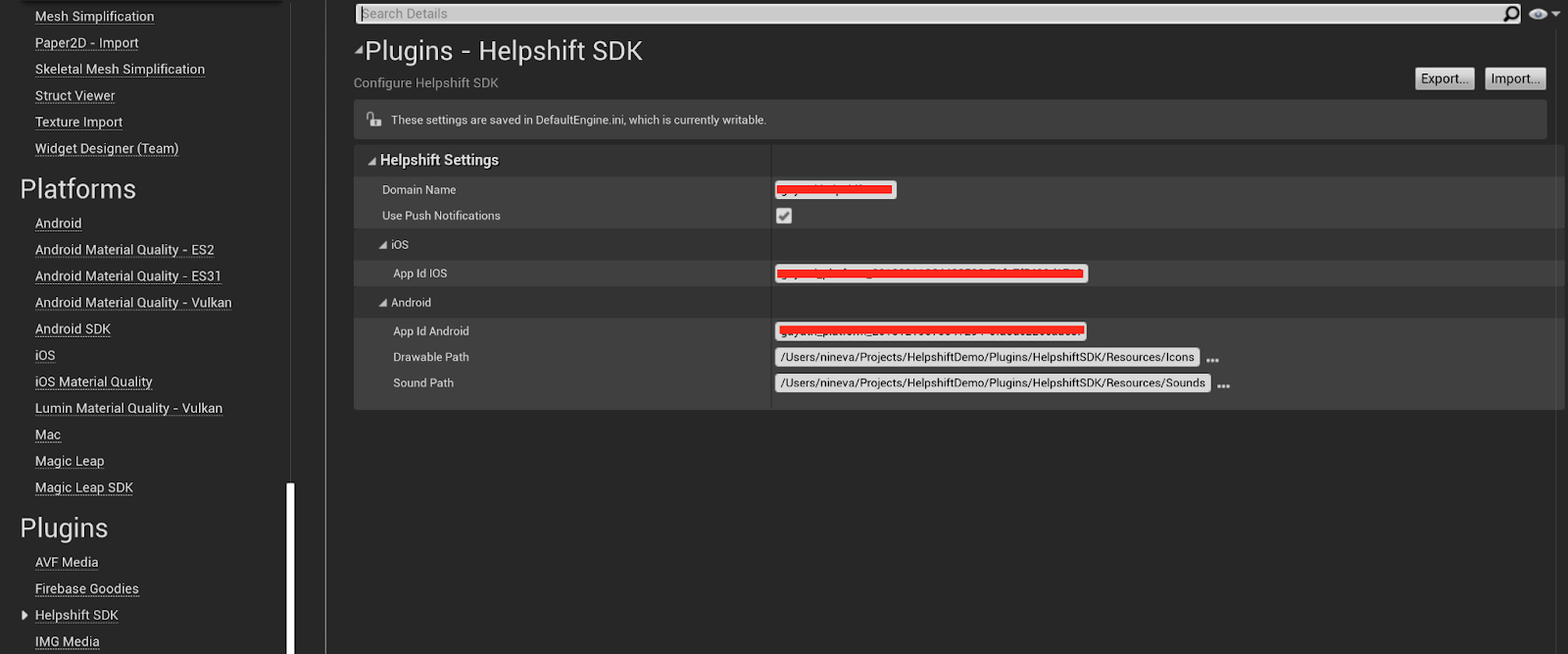
The Drawable Path and Sound Path settings are used if you want to customize the notification icons and/or sound on Android. The contents of those folders will be copied for use as android resource files.
Call the Init function before any other interaction with the Helpshift SDK (preferably in the EventConstruct call)
__
The Init call takes a map of the additional parameters. All of the parameters are optional, which means you can pass an empty map. The meaning of different keys and their possible values can be found here
Initializing Helpshift in your app (Code)
You can also initialize the SDK from code instead of blueprints. For that, you can use InitWithCredentials API -
TMap<FString, FHelpshiftConfigParameter> Parameters;
Parameters.Add(TEXT("enableLogging"),
               UHelpshiftConfigParameterFunctions::Conv_boolToHelpshiftConfigParameter(true));
// Add more config parameters

UHelpshiftLibrary::InitWithCredentials("Your Platform ID",
                                       "Your Domain",
                                       Parameters);
For iOS, if you want to support push notifications as described in the Notifications page, you must call InitWithCredentials from application:didFinishLaunchingWithOptions method in your AppDelegate.
It is safe to call Init/InitWithCredentials multiple times in the app, so you can keep the blueprint call in the EventConstruct and also call it from AppDelegate for iOS. The SDK will ignore the subsequent calls after the first successful initialization.
Android OS version Support
Calling Init/InitWithCredentials below android SDK version 24 will not work. All the APIs will be non operable.
Start using Helpshift
Helpshift is now integrated in your app. You should now use the support APIs for conversation screens inside your app.
Since the Helpshift plugin is meant for mobile devices only, you should put all Helpshift calls inside conditional checks to make sure they are only called when running on a device.
User Identity and Profile Management
User Hub is a cutting-edge User Identity and Profile system. It brings a unified view of every user directly into the Agent Dashboard in a single, real-time view. By securely integrating verified identities and capturing both standard and custom user attributes, User Hub enables teams to deliver more personalized, accurate and contextual support at every touchpoint.
With a centralized user profile that includes IDs, custom fields, notes, tags and user panels, teams can recognize users across platforms, maintain continuity and deliver truly contextual support. As AI becomes central to customer service, User Hub acts as the system of record that AI and automation depend on, providing clean, connected and secure data.
It fuels proactive engagement through complex, real-time segmentation to reach the right audience at the right moment, and serves as a foundation for workflows, predictive analytics, reporting, and many future AI-powered features.
Key change: More IDs, dedicated profile data space, real time, reach any user beyond just the ticket creators.
For more details, visit help article.
Refer User Hub documentation for SDK integration details.