Proactive Engagement
Proactive Engagement lets you reach out to your players by sending Push/In app Notifications on their mobile devices and engage in various ways including starting conversations.
This feature is available from SDK X 10.5.0 onwards.
All the public APIs in the SDK should be called after initializing the SDK via Helpshift installWithPlatformId API
Before starting with Proactive Engagement, please ensure you have integrated push notifications with Helpshift SDK. Please refer Notifications page for integration guide.
Configuring Proactive Engagement notifications
To publish a notification follow these steps:
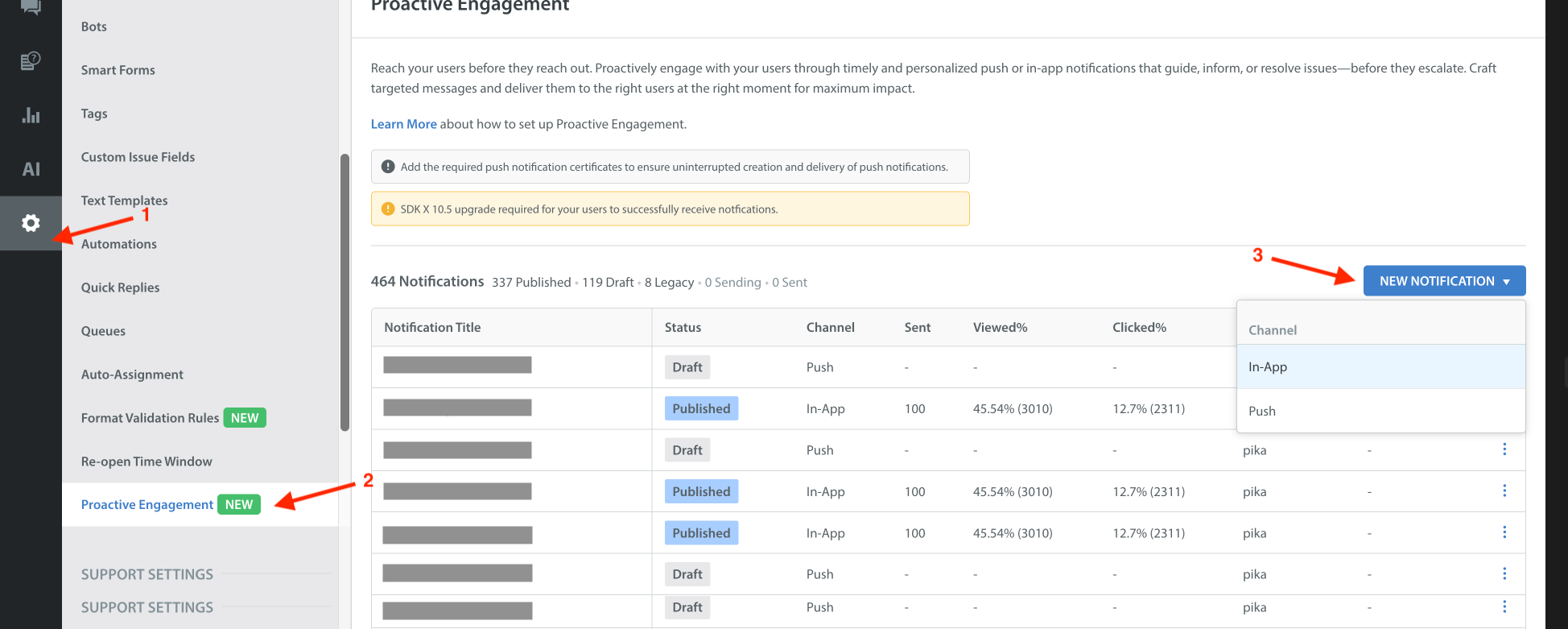
- Open the Helpshift Dashboard and navigate to Settings > Workflows > Proactive Engagement
- Create a notification for the app you want with either Push or In-App notification
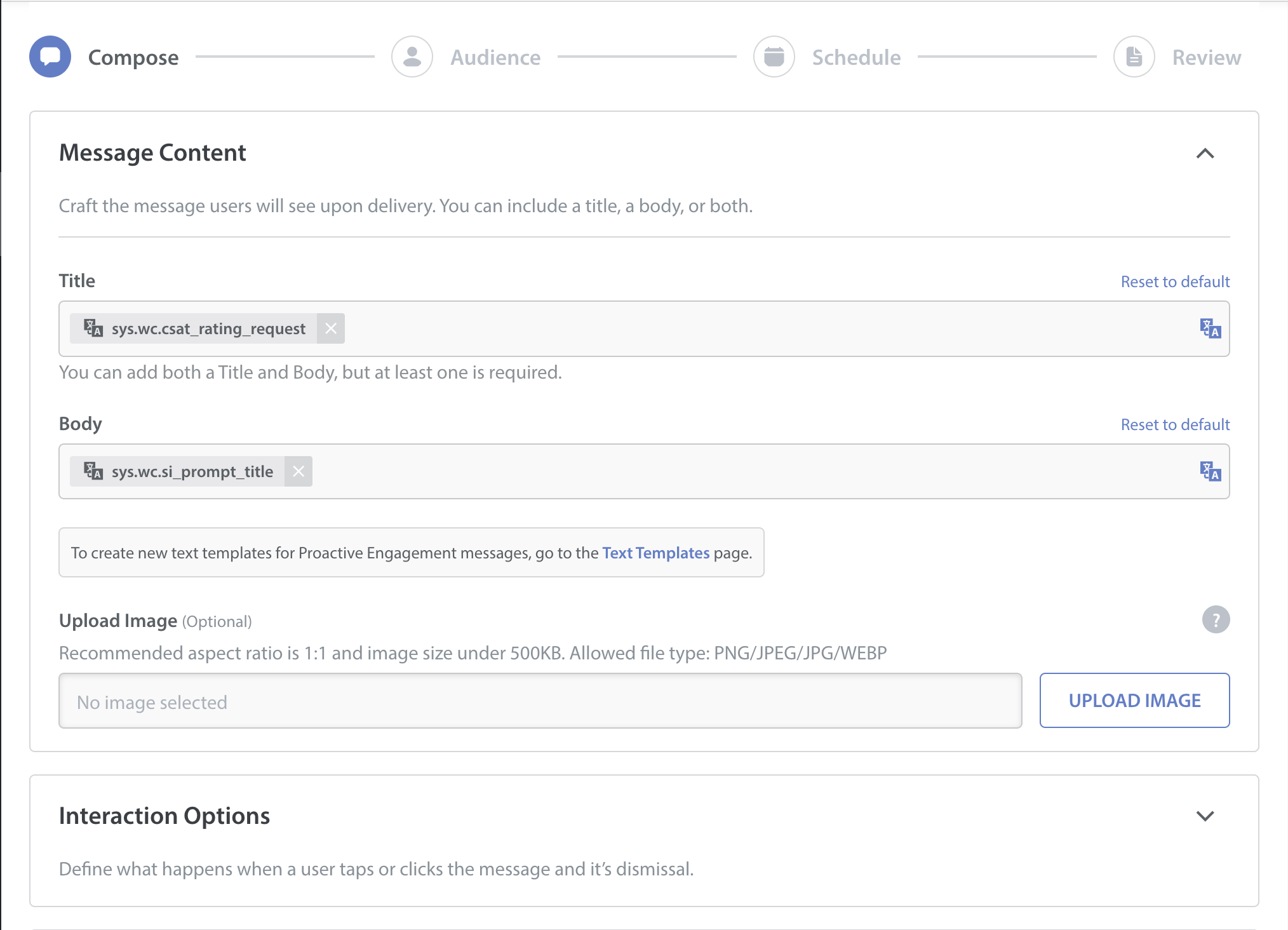
- Select the desired action from available options, fill up the notification content and add context as per your needs.
- Intents/CIFs/tags/initial message etc configured here will be used when the end user starts a conversation by clicking on the notification.
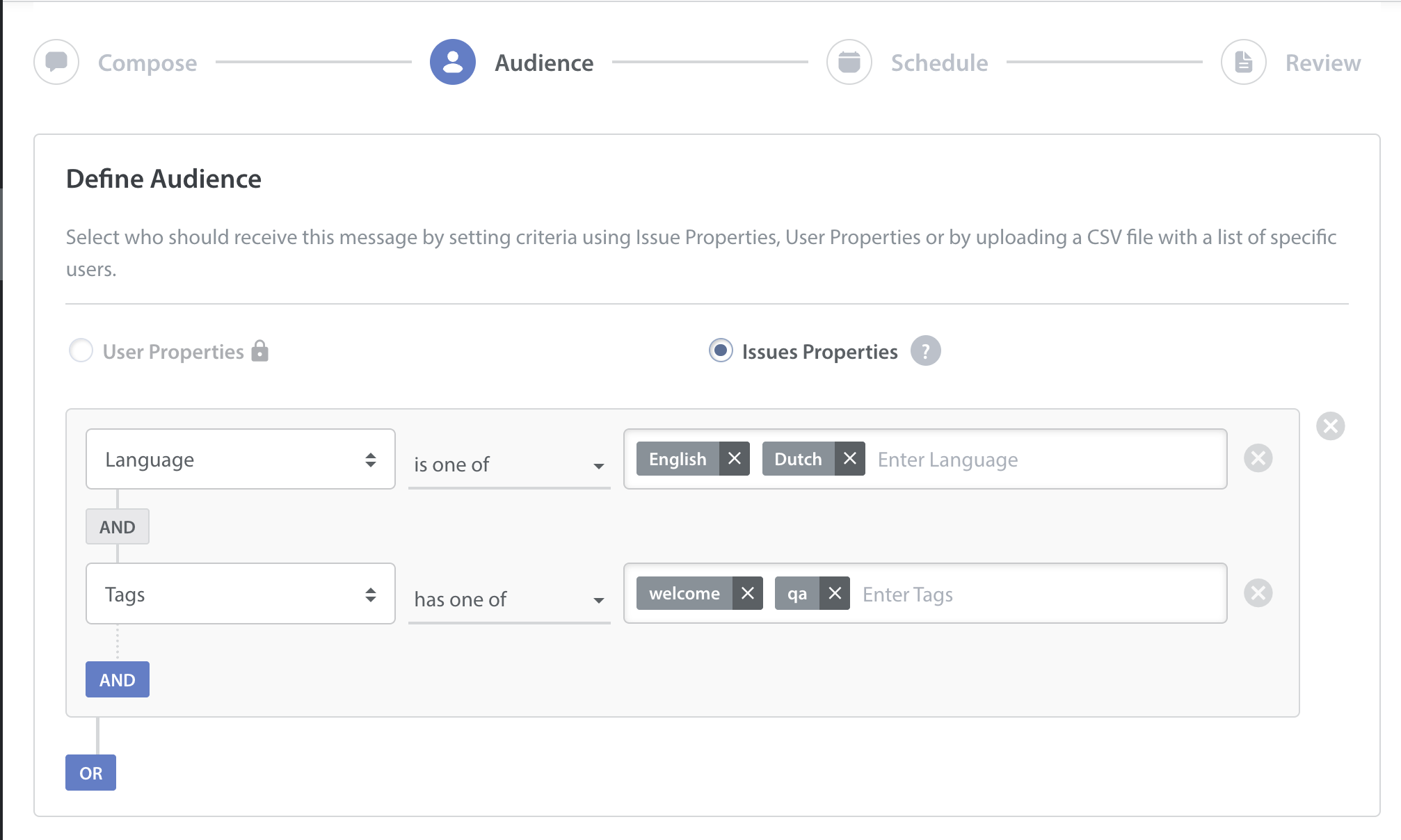
- Configure the audience filter that you want to target. You can filter the audience based on:
- Issue properties
- User properties using User Hub integration
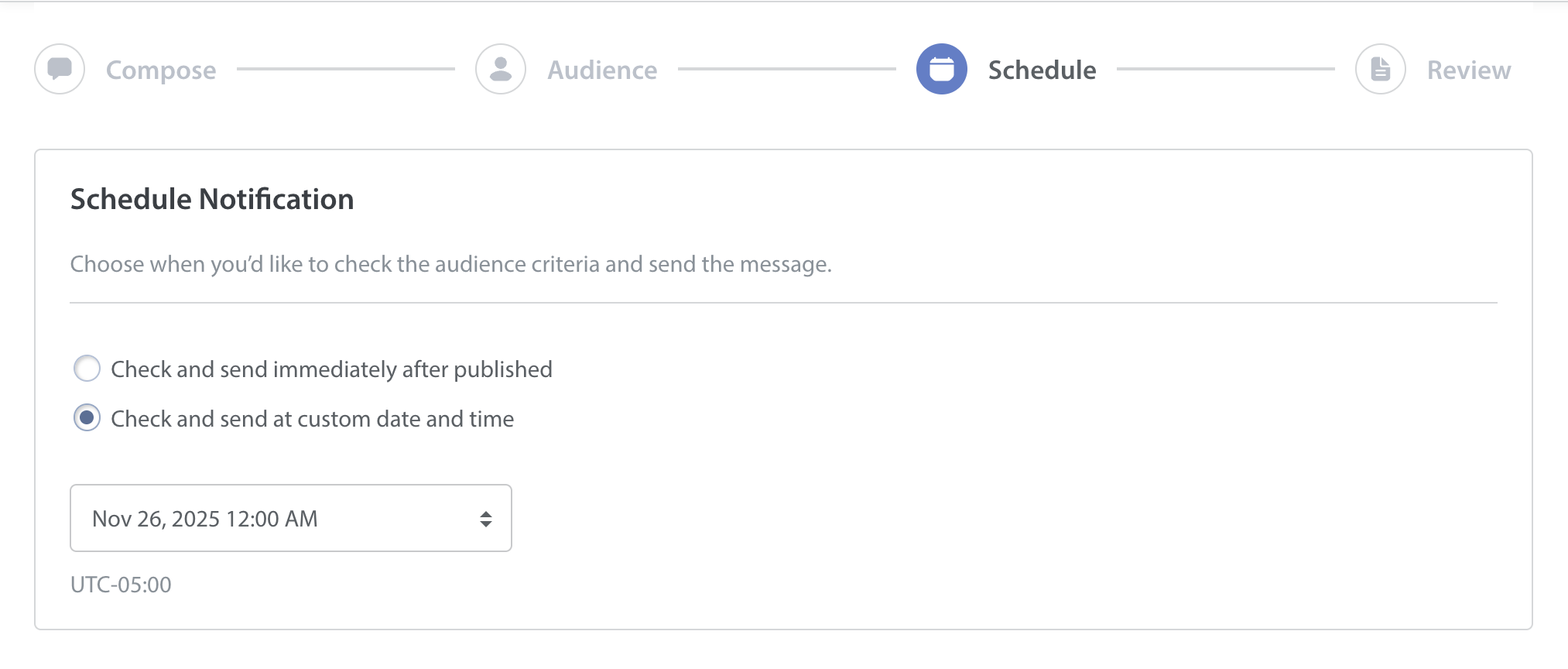
- Schedule the notification. You will get a chance to review the full configuration before publishing the notification.
Push notifications
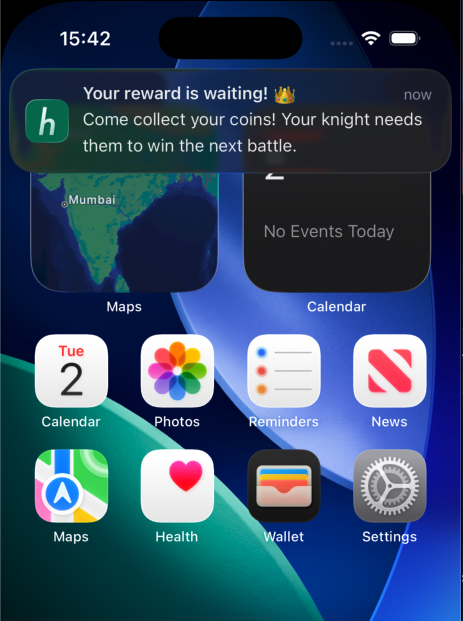
- Push-type notifications will be shown in the Notification Center of the device. Use this type of notification when you want to re-engage the user who has not been active or grab attention of users with some interesting content.
- With the various actions available on click of the notification, you can redirect the user to any part of your application via deeplinks (need to be setup by the client application) or start a conversation via “Start Chat“ option or redirect them to an FAQ for quick help.
- Push notifications will show up even if the app is not running in the background.
- Buttons in Push notification is not supported for iOS
- Rich text is not supported in the content of the notification
To support Proactive Engagement push notifications with rich content on iOS (for example, image-based notifications), your app must include a Notification Service Extension (NSE).
If your app already has a Notification Service Extension, you can reuse it. Otherwise, follow the setup instructions on the Notifications page.
In-App Notifications
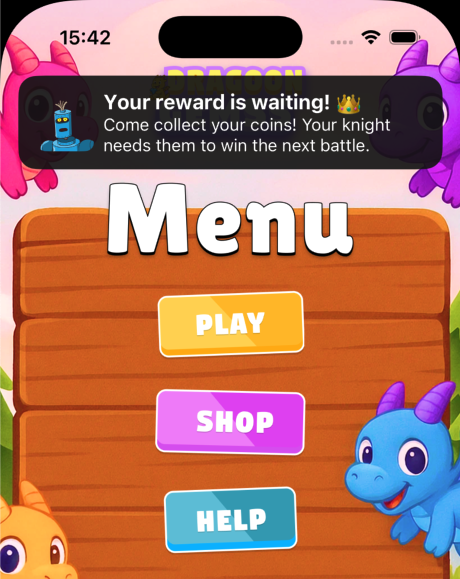
- In-App notifications are used to grab attention of the user who is already using your application, is on the application UI and you want to alert or engage with him in real time.
- If the user is not on the application UI then the notification is shown in the notification tray of the device to engage the user.
- When the user clicks on the notification we open the app and then present the actual configured in-app notification. This increases the probability of user engagement and helps us achieve our goal better.
- We currently support Banner type notifications with click actions similar to Push notifications.
- If the SDK receives multiple in-app notifications when the app was in background then the system will display all of them. On clicking the notification, we will open the app and the SDK will show in-app notification corresponding to the clicked notification. Other notifications remain as is in the notification center.
- By default, In-App notifications expire in 2 days from the time of delivery to the device. If user clicks on a notification that has already expired then on click no action will be taken.
Pausing In-App Notifications
Existing API to pause in-app support notifications - pauseDisplayOfInAppNotification - affects Proactive Engagement notifications as well. This API will pause/unpause the showing of in-app notifications to the end user when application is in foreground.
You can use this API to pause in-app notification when you know that the user should not be disturbed. For example, the user is on app startup screen, the app is still loading, user is in game play or on a payment screen etc. In such cases you can pause the in-app notifications from Helpshift SDK and once the user is done you can unpause it via the same API.
In-App notifications received when the notifications were paused are not lost, they are shown to the user as soon as the notifications are unpaused again.
This API needs to be called in every app session since SDK will not persist its value across sessions. The need to pause/unpause in-app notification is real time and depends on the current application state best known to the client application itself, hence the SDK does not persist the value across app sessions.
By default, the SDK will always show the In-App notifications unless explicitly paused by the client app by using this API.
Passing Fallback Configuration
You may want to add configuration specific to the current user in your app when interacting with proactive notifications. This configuration is used when no configuration is provided from the Dashboard when configuring the notification. The configuration data is exactly same as we would expect in other APIs like showConversationWithConfig: or showFAQsWithConfig:.
We will also use this configuration for the next issue filed in the same session. For example, if the user starts a conversation via proactive engagement notification and the conversation gets resolved in the same session and the user starts another conversation then this configuration will be used for the new conversation.
Implement public protocol HelpshiftProactiveAPIConfigCollectorDelegate and call setProactiveAPIConfigCollectorDelegate: method to initialize the config collector. You will have to implement the method getAPIConfig where you can add any user specific config in the same format as you add in other public APIs like showConversationWithConfig: or showFAQsWithConfig:. getAPIConfig is invoked by the SDK before handling the notification click action and evaluating the configuration to be used for handling the notification.
For example, following code shows how to implement HelpshiftProactiveAPIConfigCollectorDelegate protocol and how to add user specific configurations using getAPIConfig method -
- Objective-C
- Swift
// Set proactiveConfig collector delegate
[Helpshift.sharedInstance setProactiveAPIConfigCollectorDelegate:self];
// Delegate callback
- (nonnull NSDictionary *) getAPIConfig {
    NSDictionary *config = @{ @"tags": tagsArray,
                              @"cifs": cifDictionary };
    ...
    return config;
}
// Set proactiveConfig collector delegate
Helpshift.sharedInstance.setProactiveAPIConfigCollectorDelegate(self)
// Delegate callback
func getAPIConfig() -> Dictionary<String, Any> {
    var config: [String: Any] = [
        "tags": tagsArray,
        "cifs": cifDictionary
    ]
    ...
    return config
}
- You need to call this API after
installAPI and beforehandleBackgroundNotificationClick:withCompletionHandler: - The "customIssueFields" key has been deprecated. We strongly recommend transitioning to using the "cifs" key as the preferred method for passing custom issue fields.